
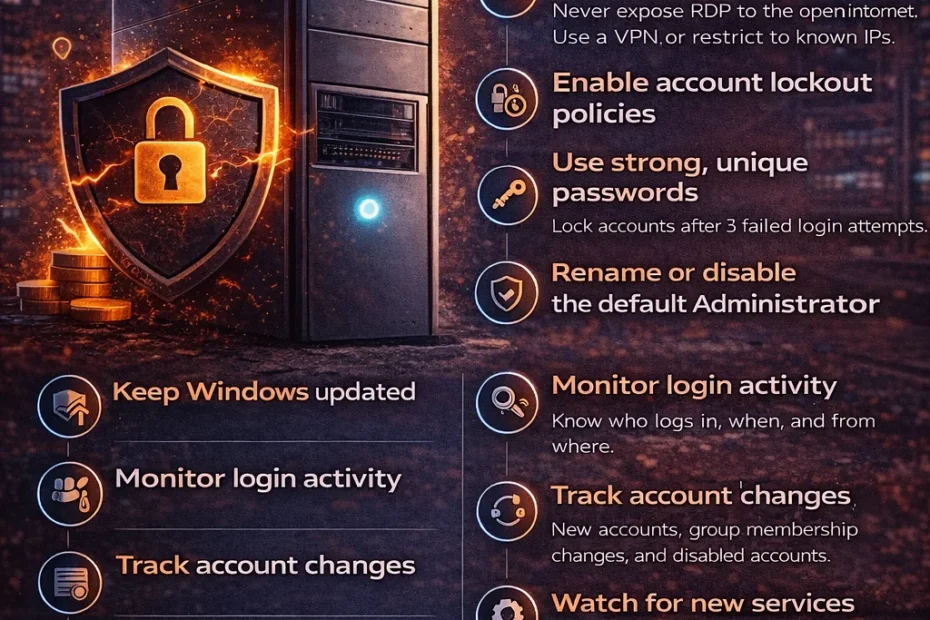
This server security checklist is for a small business running one or two Windows servers: in a CA practice, typically the Tally server and the client-file server that staff reach over Remote Desktop. It does not need enterprise tools or a security team. Most of it can be done in an afternoon, and each item comes with a quick way to verify it is really in place, because a checklist you cannot verify is a wish list. (For the rest of the office, such as laptops, Wi-Fi, email and phones, use our office cybersecurity checklist.)
The checklist
1. Take Remote Desktop off the internet
Never leave RDP open to the whole internet. The best fix is a private tunnel for staff: Prixl Guard Secure Access gives each invited person an encrypted connection to the server and lets you lock Remote Desktop to it, with no router setup or static IP needed. A VPN or RD Gateway with multi-factor sign-in also works. Failing that, restrict RDP to known IP addresses in Windows Firewall and on the router. Changing the port number is not a fix.
Verify: find the port RDP really uses (it may not be 3389) with (Get-ItemProperty -Path 'HKLM:\SYSTEM\CurrentControlSet\Control\Terminal Server\WinStations\RDP-Tcp' -Name PortNumber).PortNumber. Then, from outside the office (a laptop on a phone hotspot), Test-NetConnection 203.0.113.10 -Port 3389 with your public IP and that port should report TcpTestSucceeded : False.
2. Use long, unique passwords
Set a minimum length through policy so it is not optional. We recommend 15 characters, following NIST SP 800-63B-4 (2025), which also drops forced symbol-and-capital rules in favour of blocking common and breached passwords. Windows Server 2016 and 2019 cap the setting at 14; set 14 there and make 15 the written rule. Never reuse a password across systems, and a password manager (Bitwarden, 1Password, Keeper) makes unique passwords practical for the team.
Verify: net accounts shows “Minimum password length”.
3. Turn on account lockout, including for Administrator
Lock accounts after repeated failures. Microsoft’s newer default is 10 attempts in 10 minutes, locked for 10 minutes (KB5020282), and new installs of recent Windows builds already have it. Two things to check. On Server 2022 and older, the built-in Administrator is exempt unless “Allow Administrator account lockout” is enabled (Local Security Policy > Account Policies > Account Lockout Policy). And if RDP is still reachable from the internet, lockout lets attackers lock staff out, so finish item 1 first. Warden tells you when accounts get locked out (event 4740).
Verify: in net accounts, “Lockout threshold” should not say “Never”.
4. Rename or disable the built-in Administrator
Most password-guessing tools try “Administrator” first. Rename it, or disable it and give each admin a named account. Guessing then fails at the first step, against an account name that does not exist.
Verify: the built-in account always has a security ID ending in -500, whatever it is called. This shows its current name and whether it is enabled:
Get-LocalUser | Where-Object { $_.SID -like '*-500' } | Select-Object Name, Enabled5. Keep Windows updated
Install security patches promptly. Many breaches use flaws that already had a patch; CISA’s Known Exploited Vulnerabilities catalog lists the ones attackers are using now. Turn on automatic updates or keep a fixed monthly patching day. Check the version too: Windows Server 2012 R2 went out of support in October 2023, and Server 2016 support ends on 12 January 2027.
Verify: Settings > Windows Update shows “You’re up to date” with a recent check date.
6. Back up, keep one copy out of reach, and test a restore
Ransomware goes for the data folders first, and on a CA firm’s server that means the Tally company data and the client files. Keep the 3-2-1 rule: three copies of the data, on two different kinds of storage, with one copy offline or immutable so that someone signed in to the server cannot delete or encrypt it. An external drive that stays plugged in, or a mapped backup share, does not count; malware reaches them as easily as it reaches the server. CISA’s #StopRansomware guide sets out the same approach.
Include the whole Tally data folder (not just one company), the client document folders, and anything else you would need to work tomorrow. Back up at least daily during filing season.
Verify: a backup you have never restored is a guess. Once a quarter, restore a Tally company and a client folder to a spare PC or a separate folder, open them, and write down how long it took. That number is your real recovery time.
7. Watch sign-ins, including outside office hours
Know who signs in and when. Windows records successful sign-ins (event 4624), failures (event 4625), and event 4672 whenever an account with admin-level privileges signs in. That last one fires on every admin and system sign-in, many times a day, so it is useful context rather than an alarm on its own (Microsoft). The data is already there; it needs someone watching it.
Pay special attention to successful sign-ins outside working hours, because stolen credentials tend to be used at night and at weekends. Prixl Warden watches the Security log and emails you about password-guessing (fast floods and slow, low-and-slow campaigns) and about sign-ins outside the hours you set in its dashboard. Set your hours on day one; until you do, odd-hour sign-ins are recorded but not emailed.
Verify: open Event Viewer > Windows Logs > Security and confirm 4624 and 4625 events are being recorded at all. If not, apply our copy-paste audit policy baseline first.
8. Track account changes
New accounts (event 4720), accounts re-enabled (4722) and additions to local groups such as Administrators (4732) are exactly the moves an attacker makes to keep a way back in. Warden emails you about new accounts and admin-group changes so you can check whether you made them.
Verify: net localgroup Administrators lists only the people you expect.
9. Watch for new services and scheduled tasks
Attackers install a service or a scheduled task so their tool survives a reboot. Event 7045 in the System log records each new service. On a stable server these are rare, which makes them worth a look every time. Warden watches for new services and scheduled tasks too.
10. Protect and keep your audit logs
Clearing the Security log erases the evidence, and the clearing itself writes event 1102. Legitimate admins almost never do it, so treat it as an incident until you know otherwise. Warden emails you as soon as it sees a cleared log.
Keep enough history, too. CERT-In’s Directions of 28 April 2022 require the organisations they cover to keep logs of their ICT systems for a rolling 180 days, within India, and to report certain incidents within 6 hours of noticing them. Whatever your view of whether a small firm is in scope, we recommend keeping 180 days. The Security log defaults to about 20 MB, which can be days on a busy server; our audit policy guide shows how to enlarge it. Warden keeps 30 days of the events it collects, stored in AWS Mumbai; that is not a full copy of the Security log, so size the log as well. This is not legal advice.
Verify: in an elevated PowerShell window, Get-WinEvent -LogName Security -Oldest -MaxEvents 1 shows the oldest event you still have.
Which items can Warden do for you?
Items 1 to 6 are prevention you set up yourself; 5 simple steps to secure your Windows server walks through the main ones. Warden’s security audit checks several of them (Remote Desktop exposure, firewall, risky ports, password and lockout policy, Windows Update age) and, on paid plans, offers one-click fixes with a revert. Backups are yours alone.
Items 7 to 10 are about noticing, which is where a person checking logs by hand usually gives up. Warden watches those events on the server and emails you, with a daily digest at 18:00 IST and a weekly summary on Mondays. Start your 30-day free trial to see it on your own server.