
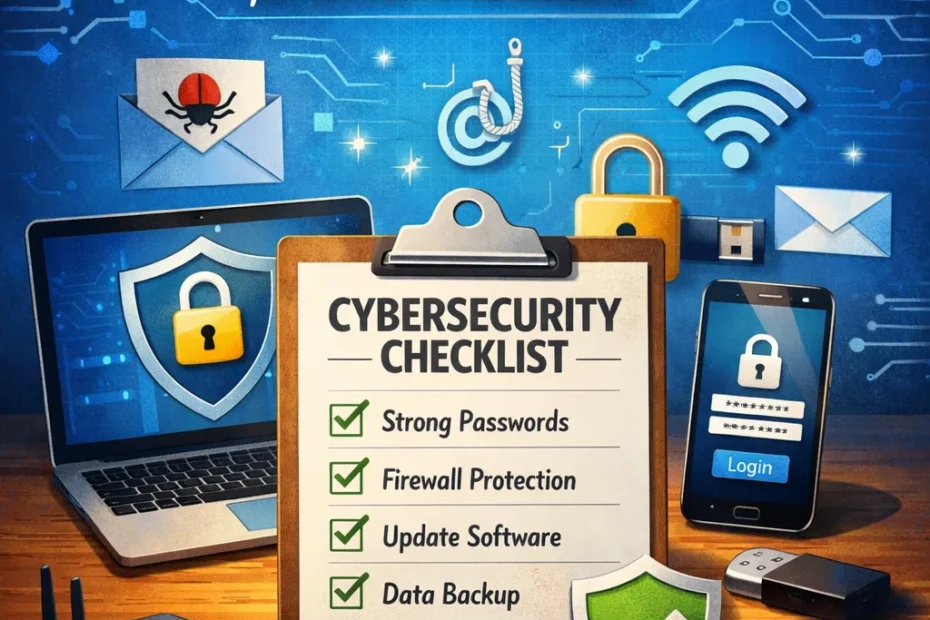
This is a cybersecurity checklist for the small business office itself: the PCs, email, Wi-Fi, router, devices, backups and people. It is written for a CA practice or similar firm of 5 to 30 people, but most of it applies to any small office. If you also run a Windows server that staff reach over Remote Desktop, work through our separate server security checklist as well. Print this page, tick what is done, and come back to it every quarter.
1. Passwords and a password manager
Every account needs its own password; reuse is what lets a leak on one website open your email or your server (credential stuffing explains how). Current guidance from NIST SP 800-63B-4 (2025) is to make passwords long, at least 15 characters where no second factor is used, and to stop forcing mixes of capitals, numbers and symbols, which only produce patterns like “Firm@2026”. A passphrase of several unrelated words is fine. A business password manager such as Bitwarden, 1Password or Keeper makes unique passwords practical and lets you share portal logins without passing them around on WhatsApp.
- ☐ Every staff member has their own login; no shared accounts for email or the server
- ☐ Passwords are long (15+ characters) and not reused
- ☐ A business password manager is in use, including for income-tax, GST and MCA portal logins
- ☐ Default passwords are changed on the router, CCTV DVR/NVR, NAS, printers and attendance device
2. Two-factor authentication on email and cloud accounts
A second factor (an app code, phone prompt or security key) means a stolen password alone is not enough. Turn it on first for email, because password resets for everything else go there. Codes can still be stolen by fake login pages that relay them, so pair it with phishing training. Our two-factor authentication guide covers the options.
- ☐ 2FA on every Microsoft 365 or Google Workspace mailbox
- ☐ 2FA on admin accounts: email admin, domain registrar, website hosting
- ☐ Two recovery methods registered for each partner account
3. Remote access to the office
If staff work on the office server from home, especially in tax season, Remote Desktop must not be open to the whole internet. Close it, and give staff a private way in: Guard Secure Access, a VPN or Remote Desktop Gateway; at the very least, allow only known IP addresses. Note that Windows Remote Desktop has no built-in two-factor option. Getting a second factor onto it takes Guard (only invited devices can reach Remote Desktop), Remote Desktop Gateway with MFA, or a third-party MFA agent. Details are in how to restrict RDP access safely.
- ☐ Remote Desktop is not reachable from the internet (no router port forward to it)
- ☐ Staff connect through Guard, a VPN or RD Gateway
- ☐ Remote access is limited to the people who need it, and removed when they leave
- ☐ Remote-support tools (AnyDesk, UltraViewer, TeamViewer) are removed from PCs that do not need them
4. Router, Wi-Fi and firewall
The office router is not just internet equipment; it decides what the outside world can reach. Log in to it once (or ask your internet provider or IT vendor to) and check the items below. Our post on whether your firewall is protecting you covers the Windows side.
- ☐ The router’s admin password is changed from the default
- ☐ Remote (WAN) management of the router is switched off
- ☐ The port-forwarding list is reviewed, and every entry has a known reason
- ☐ Office Wi-Fi uses WPA3, or WPA2 if devices cannot do WPA3
- ☐ Guests and visitors use a separate guest Wi-Fi, not the office network
5. Updates
Updates close holes that attackers already know about. Turn on automatic updates on every PC, keep browsers current, and check router and NAS firmware a few times a year. Windows 10 reached the end of support on 14 October 2025, so PCs still on it without Extended Security Updates no longer receive security fixes. More in why regular software updates matter.
- ☐ Automatic Windows updates are on for every PC
- ☐ No PC runs an unsupported Windows version without a plan to replace it
- ☐ Router, NAS and DVR firmware were checked in the last six months
6. Backups you have actually restored
Backups are what get you working again after ransomware, a failed disk or an accidental delete. Follow 3-2-1: three copies of your data, on two different kinds of storage, with one copy away from the office. Make sure at least one copy is offline or immutable, because ransomware goes after any backup it can reach over the network, and Tally data folders are a favourite target. Then test it by restoring a real company’s Tally data to a spare PC; until you have done that, you do not know the backup works.
- ☐ Automatic backups run daily, including the Tally data folder and client files
- ☐ One copy is offline or immutable and kept away from the office
- ☐ A test restore was done in the last 90 days
7. Email and payment checks
Phishing is one of the three most common ways in, according to the Verizon DBIR 2025. The costly version for a CA firm is a convincing email asking for a payment or a bank-detail change. Agree simple rules now, and train the team on fake income-tax and GST notices; see phishing training for small teams.
- ☐ Any change to a client’s or vendor’s bank details is confirmed by phone on a known number
- ☐ Nobody shares an OTP or UPI PIN, whoever asks
- ☐ Staff know where to forward a suspicious email, and that reporting a mistake is welcome
8. Staff training
- ☐ Every new joiner gets a 15-minute security briefing in their first week
- ☐ A short refresher runs every quarter, and one before the ITR and audit season
- ☐ Staff lock their screens when they leave the desk
9. Who has access to what
People join, change roles and leave; articles finish their training. Give each person only the access their work needs, and remove it the day they go.
- ☐ Leavers’ accounts (email, server, portals, Guard or VPN) are disabled on their last day
- ☐ Shared portal passwords are changed when someone who knew them leaves
- ☐ Only one or two people have administrator rights on the PCs and server
- ☐ Access is reviewed twice a year
10. Know what is happening on the server
The office server keeps a log of every sign-in, failed password, new account and settings change, but nobody reads it. Many attacks are only found after files are encrypted or accounts are locked out. Somebody, or something, should be watching. The server checklist lists what to watch.
- ☐ Failed and successful sign-ins on the server are monitored
- ☐ Alerts go to a person who reads them and knows what to do
- ☐ Backup failures raise an alert too
11. An incident plan, including who to tell
Decide now who you call, what you disconnect and where the backups are, so nobody is working it out in a panic. Indian rules add deadlines. Under the CERT-In Directions of 28 April 2022, reportable cyber incidents must be reported to CERT-In ([email protected]) within 6 hours of noticing them. From mid-May 2027, the DPDP Act 2023 and DPDP Rules 2025 add a duty to tell the Data Protection Board and each affected person about a personal data breach, with a detailed report within 72 hours. If money is lost, call 1930 and file at cybercrime.gov.in. This is a summary, not legal advice. Our incident response guide walks through the steps.
- ☐ A one-page incident plan is written down and printed
- ☐ Phone numbers for your IT vendor, bank, insurer and CERT-In are on it
- ☐ The partners have read it at least once
12. Insurance
Cyber insurance can pay for investigation, recovery and business interruption. Ask your insurer or broker whether your current office policy covers a cyber incident at all, and what conditions it sets, such as working backups or two-factor authentication. Answer the proposal form truthfully; a wrong answer there can void the cover.
- ☐ The current policy has been checked for cyber cover
- ☐ A cyber policy is in place or has been quoted
Start where you are
You will not tick every box this week. Start with the items that close the biggest doors: Remote Desktop off the internet, 2FA on email, default passwords changed, and an offline backup you have restored once. Then work down the list.
For item 10, Prixl Warden runs on your Windows server, reads its event logs and emails you about brute-force attacks, sign-ins outside working hours, new admin accounts and the firewall being switched off, with a daily digest and a weekly summary. Its 29-check security audit covers much of the server checklist. For item 3, Guard Secure Access lets staff reach the server without Remote Desktop being open to the internet. Start your 30-day free trial.