
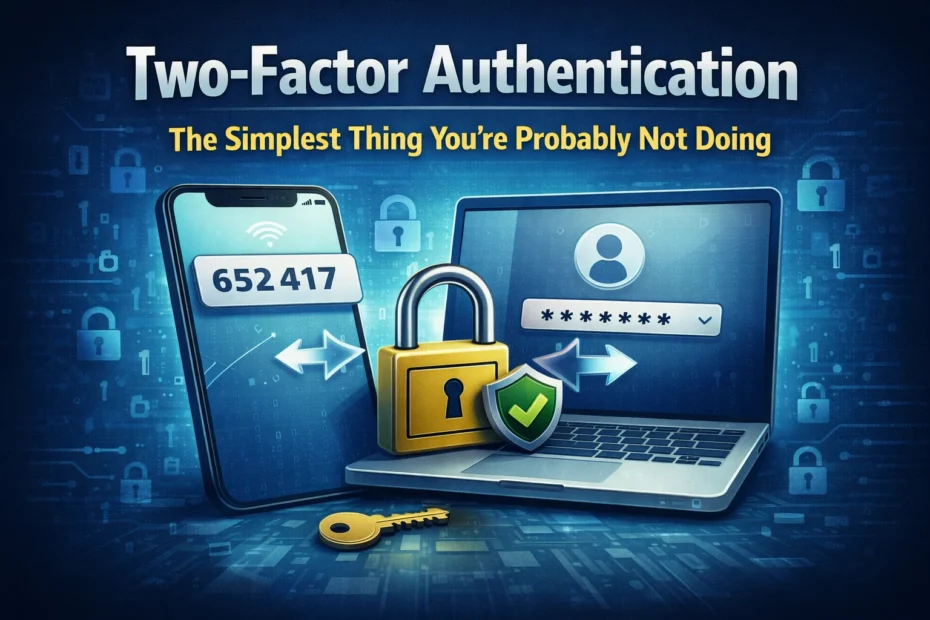
If you run a CA practice in India, you already use two-factor authentication every day. Your bank sends an OTP before a payment goes through, and you e-verify returns with an Aadhaar OTP. Yet the accounts that hold the firm together, the email inbox, Microsoft 365 or Google Workspace, and the office server your staff reach over Remote Desktop, are often protected by a password alone. Turning on two-factor authentication for them is one of the cheapest security improvements a small firm can make.
What two-factor authentication is
Two-factor authentication (2FA), also called multi-factor authentication (MFA), adds a second proof after the password: a code from an app, a prompt on your phone, an SMS, or a hardware key. A stolen password on its own is then not enough to sign in.
How much does it help? Microsoft reported in August 2019 that MFA can block over 99.9 percent of account compromise attacks on its services. Those attacks are mostly automated: password spraying and credential stuffing with leaked passwords. The figure does not cover targeted phishing, which is the next section.
What 2FA does not stop
2FA is often described as “the attacker would also need your phone”. That is no longer true for the common types. Adversary-in-the-middle phishing kits show the victim a convincing copy of the real login page, pass the password and the one-time code to the real site as they are typed, and keep the signed-in session. The attacker never touches your phone. The US cybersecurity agency CISA therefore recommends phishing-resistant MFA, such as security keys and passkeys, for the most important accounts. Ordinary 2FA is still very much worth having; just do not treat it as a reason to stop training staff to spot phishing.
Types of 2FA, from weakest to strongest
- SMS codes. Familiar and better than nothing, but the number can be hijacked through a SIM swap, and the code can be phished.
- Authenticator app codes or push prompts (Microsoft Authenticator, Google Authenticator). Free, work without mobile signal, and are not exposed to SIM swaps. They can still be phished, and push prompts should show a number to match so staff do not approve a prompt they did not start.
- Passkeys and hardware security keys (for example a FIDO2 key). The key checks which website it is talking to, so a fake login page gets nothing. These are the phishing-resistant option. Start with partners’ email and admin accounts.
Turn it on for the accounts that matter most
- Email. In Microsoft 365 or Google Workspace, every partner and staff mailbox. Email is how password resets for everything else arrive.
- Admin accounts for Microsoft 365 or Google Workspace, your domain registrar and your website hosting.
- Banking and payment portals, beyond the transaction OTP the bank already sends.
- The office server, covered below, because Windows does not do it for you.
In Microsoft 365, users register the Microsoft Authenticator app from their account’s security info page; in Google Workspace, turn on 2-Step Verification from the Google Account security page. An administrator can require it for the whole organisation in both.
2FA for Remote Desktop
Windows Remote Desktop has no built-in 2FA. Telling staff “use 2FA for the server” means adding one of these:
- Guard Secure Access. You invite each staff member from the Warden dashboard; they enter a one-time invite code in the Guard app on their Windows laptop, and connect to the office server through an encrypted tunnel. Remote Desktop can then be closed to the internet, so it only answers invited devices and the office LAN. A password stolen in a phishing attack is not enough on its own, because the attacker’s computer is not invited. Guard’s staff app is Windows 64-bit only today.
- Remote Desktop Gateway with MFA. Microsoft’s NPS extension adds a Microsoft Entra MFA prompt to RD Gateway sign-ins. It needs extra server roles and Microsoft licences, so it suits firms with an IT vendor who already runs those.
- A third-party MFA agent installed on the server, which asks for a code or a phone approval at the Windows sign-in screen.
Whichever route you take, do not leave Remote Desktop open to the whole internet in the meantime; see how to restrict RDP access safely. And keep server passwords long: we recommend at least 15 characters.
Common objections
“It is too slow.” A code or a phone tap adds a few seconds to a sign-in, and most services remember a trusted device for a while. Compare that with a week of downtime in the middle of the ITR or GST rush.
“My password is strong.” Strength does not help if the password leaks from another site or is typed into a fake login page. A second factor does.
“We are too small to be a target.” Password-spraying and credential-stuffing tools do not check the size of the firm. They try every address they can reach.
“What if I lose my phone?” Plan recovery before you need it. Some services, such as Google accounts, give you backup codes; print them and keep them somewhere safe. Others do not: Microsoft 365 work accounts, for example, do not issue printable backup codes; you get back in with another method you registered earlier, or an administrator resets your sign-in methods. So register two methods (say, the app and a security key, or the app and a second phone), and make sure more than one person in the firm can reset staff accounts.
Start this week
Begin with email and admin accounts; it takes an afternoon. Then deal with the server. Prixl Warden watches your Windows server’s sign-in logs and emails you about brute-force patterns, admin sign-ins and sign-ins outside working hours, so if a password is being tried or used where it should not be, you hear about it. Guard Secure Access, set up from the same dashboard on plans that include Guard, takes Remote Desktop off the internet. Start your 30-day free trial.