
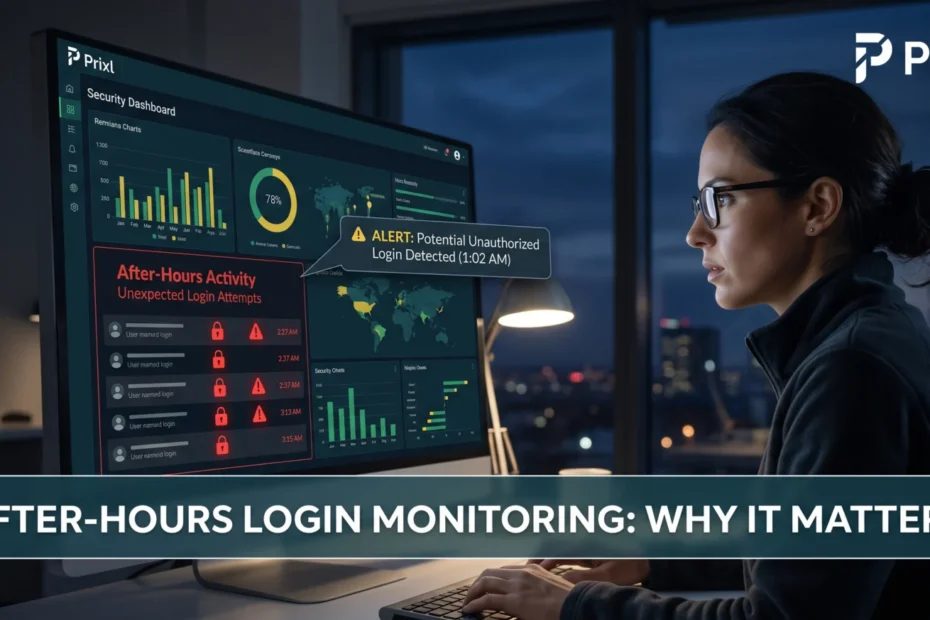
Someone signs in to your Windows server at 2:47 AM on a Saturday. Is it your IT vendor running an emergency update, or someone using a stolen password while nobody is watching? Without after-hours login monitoring you cannot tell the difference, and you may not find out at all until something breaks.
Why after-hours access matters
Attackers prefer to work when no one is looking. If they have obtained a valid password through phishing, a leaked password list or a lucky guess, they often wait for evenings, weekends or holidays to use it. If nobody checks until Monday morning, they have days of uninterrupted access.
This is what makes stolen-password break-ins so hard to catch: technically, nothing is wrong. The username is real, the password is correct, and Windows records a perfectly ordinary successful sign-in. Firewalls and antivirus have nothing to object to. The one tell that survives is timing, and timing is exactly what nobody is watching.
What Windows already records
Windows records every successful sign-in as Event ID 4624 in the Security log. The entry includes the time, the account name, the source IP address and the logon type, which tells you how the sign-in happened:
- Type 10 (RemoteInteractive): a Remote Desktop session. For after-hours review, this is the one that matters most.
- Type 2 (Interactive): someone at the server’s own keyboard and screen, or at a virtual machine’s console.
- Type 3 (Network): access to shared folders or services over the network.
- Type 5 (Service): background services starting; routine noise you can ignore.
All the information you need is already there. The problem is volume: a busy server writes thousands of 4624 events a day, and the two that matter look identical to the rest until you check the clock and the source address. Failed attempts are recorded separately as Event ID 4625; our guide to reading Event ID 4625 covers those, and our audit policy baseline makes sure both are being recorded.
The working hours idea
The idea is simple: decide when your team normally works, and treat any successful sign-in outside that window as worth a look. If your office works 9:30 AM to 7:30 PM on weekdays, a sign-in at 11 PM or 5 AM should be noticed. It may be perfectly legitimate, a partner finishing a return late at night, but someone should know it happened.
What makes this check useful is that it needs little interpretation. Your office either works at 3 AM or it does not. In most small offices, after-hours sign-ins are rare enough that each one is worth a glance, which is exactly what makes an alert meaningful when it comes.
Can you do this manually?
Partly. Windows Task Scheduler can start a task when a particular event is written: create a task triggered by Event ID 4624 in the Security log and attach a script. It works as a proof of concept, but you hit the limits quickly. It cannot filter by time of day or logon type without custom XML queries and scripting, it fires on every service sign-in unless you build the filtering yourself, and its built-in “send an e-mail” action is deprecated on current Windows. Most people who start down this road end up with a pile of PowerShell to maintain or alerts they have learned to ignore. If you want to try anyway, our guide to brute-force detection without a SIEM shows how to read these events in PowerShell and schedule a script.
How Warden does it
Prixl Warden watches successful sign-ins on the server and flags any that fall outside your working hours. You set the hours in the Warden dashboard on the server itself, not in a configuration file:
- Open the dashboard with the Prixl Warden Dashboard shortcut on the server’s desktop and accept the Windows permission prompt.
- Go to the Settings tab, section Working Hours.
- Choose a Start Time and End Time (in 30-minute steps) and tick your Working Days.
- Click Save Settings, just below the Notification Categories section that follows. The same button saves both sections.
Until you save your own hours, Warden uses a default of 9:00 AM to 6:00 PM, Monday to Friday, and shows a yellow “Set your working hours” banner. Out-of-hours sign-ins are still recorded in that state, but they are not emailed, because a guessed window would wake you up for staff working late. Saving your real hours turns the emails on. The Timezone row in the same section shows the server’s own time zone, and that is the clock the hours are read against, so make sure the server is set to India Standard Time. The working hours and alerts help page walks through each screen.
What counts, and what is ignored
Not every sign-in outside working hours is a person. Warden ignores:
- Windows’ own system accounts (NT AUTHORITY\SYSTEM, LOCAL SERVICE, NETWORK SERVICE): Windows doing its own maintenance.
- Service sign-ins (logon type 5): background services starting with stored credentials.
What it does check is people signing in over Remote Desktop: the alert carries the account, the time and the source address, which is what you need to decide whether it was really one of your staff.
Tax season: tune the hours, do not switch off the alerts
In a CA practice, the weeks before the income tax return and tax audit deadlines are exactly when staff sign in from home at 11 PM. If out-of-hours alerts start arriving every night, the temptation is to switch off Odd-hour logon alerts under Notification Categories. Resist it. Widen the window instead: move the End Time later, or tick Saturday under Working Days, for the busy weeks, and put it back when filing season ends. Late-night sign-ins outside even the wider window will still reach you, and you will not have forgotten that the alerts are off when the season is over.
A real-world scenario
Imagine this sequence in your logs:
- Friday, 11:15 PM: successful Remote Desktop sign-in for “admin” from 203.0.113.45 (Event ID 4624, type 10)
- Friday, 11:16 PM: special privileges assigned to “admin” (Event ID 4672)
- Saturday, 2:00 AM: new user account “sysbackup” created (Event ID 4720)
- Saturday, 2:01 AM: “sysbackup” added to the Administrators group (Event ID 4732)
Without monitoring, you discover this on Monday, if at all. With your working hours saved in Warden, the 11:15 PM sign-in produces an alert email that night with the account, the source address and the time, and the new account and the Administrators-group change at 2 AM produce alerts of their own. You can act on Friday night instead of Monday morning.
When an alert fires: what to do
An after-hours alert is a question, not a verdict. Answer it in this order:
- Ask the person. Message the account’s owner: “Did you just sign in to the server?” Most of the time this settles it in a minute.
- Check the source address. Is it one you recognise, such as a partner’s home broadband or your office’s own connection? Home addresses on Jio or Airtel often change from day to day, so an unfamiliar address is not proof by itself. An unfamiliar address, an odd hour and an owner who says “not me” together are close to conclusive.
- If it was not them, act at once: disconnect the session, disable the account, reset its password, and check what happened next in the log: new accounts, group changes, new services. Our incident response guide walks through the full response, including reporting to CERT-In within six hours.
A stolen password is far less useful to an attacker who cannot reach the server in the first place. If staff connect over Remote Desktop from home, consider Prixl Guard Secure Access, which lets only invited devices reach the server, and read our post on how to tell if someone is trying to break in for the other warning signs.
That is the difference between catching a break-in on Friday night and discovering it weeks later. Start your 30-day free trial and see what your after-hours activity looks like.