
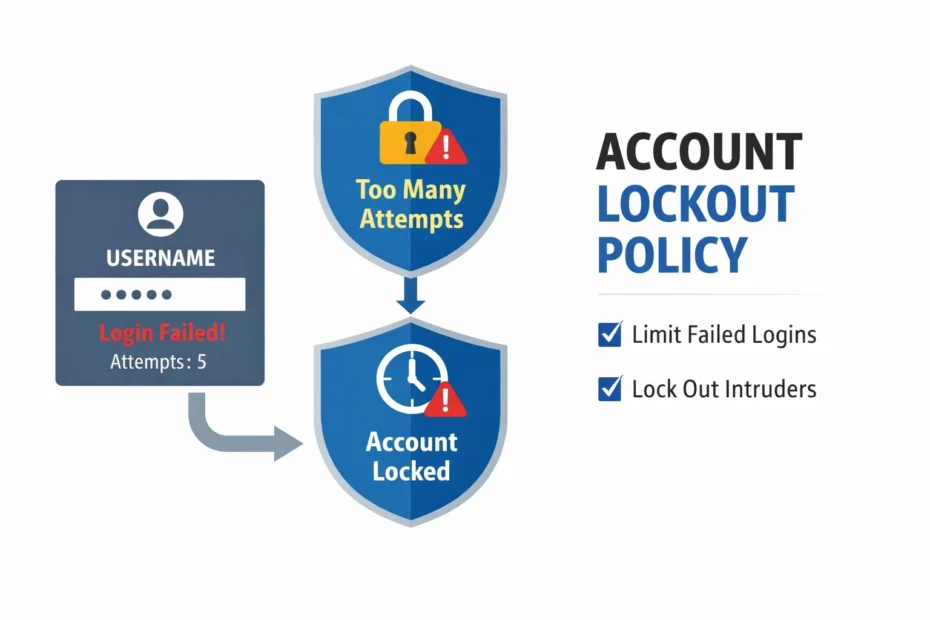
When someone types the wrong password on your Windows server, what happens next depends on the account lockout policy. On many older servers the answer is: nothing. The guesser can keep trying, forever. Newer Windows builds lock an account after repeated failures by default, but there are exceptions that matter, and the most important one is the very account attackers guess first.
This guide explains what an account lockout policy on Windows does, how to check and set one in a few minutes, and where it falls short.
What an account lockout policy does
The policy tells Windows to lock an account temporarily after a set number of failed sign-ins. While it is locked, nobody can sign in to that account, even with the correct password, until the lockout period ends or an administrator unlocks it. Each lockout is written to the Security log as Event ID 4740.
There are three settings, plus a fourth on servers with current updates:
- Account lockout threshold: how many failed sign-ins lock the account. 0 means never.
- Account lockout duration: how long the account stays locked.
- Reset account lockout counter after: how long Windows waits, with no further failures, before setting the failure count back to zero. Three typos spread across a morning do not add up to a lockout if this window has passed between them.
- Allow Administrator account lockout: whether the built-in Administrator account can be locked out at all. More on this below, because it matters most.
What your server does today
Microsoft changed the defaults in October 2022. On Windows 11 22H2 and later, and on new installs that include the October 2022 updates, the default is 10 failed attempts, a 10-minute lockout and a 10-minute reset, with Administrator lockout enabled (Microsoft KB5020282). Servers set up before then keep their old settings, and the old default threshold is 0: never lock (Microsoft, Account lockout threshold).
Check yours in a Command Prompt or PowerShell window:
net accountsLook at the lines “Lockout threshold”, “Lockout duration (minutes)” and “Lockout observation window (minutes)”. If the threshold reads “Never”, there is no lockout at all.
The Administrator gap
On Windows Server 2022 and older, the built-in Administrator account is exempt from lockout unless “Allow Administrator account lockout” is enabled. It is the account every bot tries, because it exists on every Windows server. A lockout policy that leaves it out protects your staff accounts and leaves the most valuable one open to unlimited guessing.
Turning it on is not meant to lock you out of your own server: the setting is designed so that a locked-out Administrator is refused network sign-ins such as Remote Desktop, not the server’s own console (check Microsoft’s note on the setting before relying on this). If the setting does not appear in your Local Security Policy at all, the server is missing the October 2022 updates, which is a bigger problem than lockout.
How to set up an account lockout policy
These steps are for a standalone server, which is what most small offices have. If your server is joined to a domain, see the note after the steps.
- Sign in as an administrator, press Windows + R, type
secpol.mscand press Enter. This opens Local Security Policy. - In the left panel, expand Account Policies and click Account Lockout Policy.
- Double-click Account lockout threshold and set it to 10 invalid logon attempts. Windows offers suggested values for the other two settings; accept, then adjust them in the next step.
- Set Account lockout duration to 10 minutes and Reset account lockout counter after to 10 minutes. The reset time cannot be longer than the duration.
- Double-click Allow Administrator account lockout and set it to Enabled.
- Click OK and close the window. The change applies at once; no restart is needed. Run
net accountsagain to confirm.
You can set the first three from an elevated Command Prompt too:
net accounts /lockoutthreshold:10 /lockoutduration:10 /lockoutwindow:10Domain-joined servers: Local Security Policy does not govern domain accounts. Set the lockout policy for domain accounts in the Default Domain Policy instead (Group Policy Management, under Computer Configuration > Policies > Windows Settings > Security Settings > Account Policies > Account Lockout Policy), or ask whoever manages your domain.
Recommended settings
| Setting | Value |
|---|---|
| Account lockout threshold | 10 invalid logon attempts |
| Account lockout duration | 10 minutes |
| Reset account lockout counter after | 10 minutes |
| Allow Administrator account lockout | Enabled |
These are Microsoft’s own defaults on new installs. A lower threshold, say 5, slows guessing further but locks out staff who mistype more often; on a server open to the internet it also makes the problem in the next section worse.
When a staff member gets locked out
Either wait for the lockout duration to pass, or unlock the account by hand:
- Press Windows + R, type
lusrmgr.mscand press Enter (or open Computer Management > Local Users and Groups > Users). - Double-click the user, untick Account is locked out, and click OK.
Note that net user name /active:yes enables a disabled account; it does not unlock a locked one. And before you unlock, ask why it locked. If the person did not mistype their password several times, someone else did.
Why lockout alone is not enough
Lockout is good at stopping fast floods, where a bot hammers one account with hundreds of guesses. It has three weaknesses.
It slows guessing; it does not stop it. With 10 attempts every 10 minutes or so, a patient bot can still make hundreds of guesses per account per day. That is plenty to find “Tally@123” or “Welcome@123”. Long, unique passwords do the real work here: at least 15 characters, as our password length guide explains.
Slow attacks and password spraying stay under it. A slow campaign tries a few passwords, waits for the counter to reset, and tries again. Password spraying tries one common password against every account name it can think of, so each account sees only one failure. Neither ever trips a lockout. Our guide to brute force attacks explains both.
It can be turned against you. If Remote Desktop is open to the internet, a bot guessing a real account name will lock that person out, again and again. Your accounts manager arrives on a Monday in September and cannot sign in, while the attacker loses nothing. Microsoft’s own documentation warns that lockout can be used this way.
That last point is one more reason to take Remote Desktop off the internet altogether. Once only your own people can reach the server, through Prixl Guard Secure Access, a VPN or an RD Gateway, the guessing stops and lockout goes back to catching the occasional typo. Our guide to restricting RDP access covers each option. Changing the RDP port is not a substitute: it reduces log noise, nothing more.
Watch what lockout misses
Lockout events and the failed sign-ins behind them are all in the Security log (Event IDs 4740 and 4625). Our guide to reading Event ID 4625 shows how to read them, and brute-force detection without a SIEM gives you a script that watches for them.
Prixl Warden does that watching for you. It tracks failed sign-ins per IP address and per account, so it catches fast floods and the slow, low-and-slow campaigns and spraying that never trip a lockout, and it emails you about lockouts and account changes as they happen. Its security audit also checks your lockout setting, along with password length and other account policies, and on paid plans can switch a missing lockout policy on from the dashboard’s Hardening tab, with a revert; compare the values it applies with the table above.
Start your 30-day free trial and see what your lockout policy is not catching.