
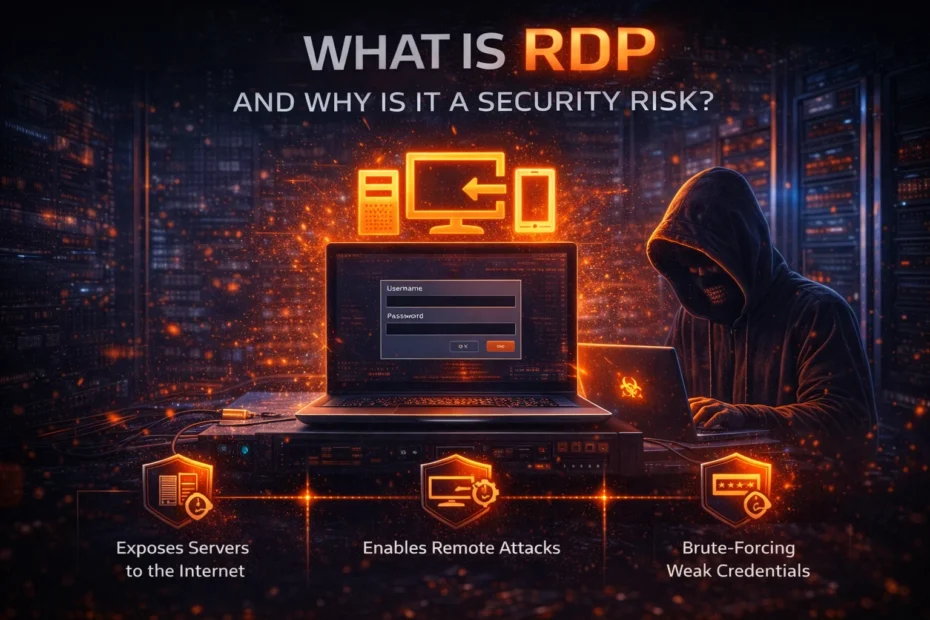
RDP security comes down to one question: who on the internet can reach your server’s Remote Desktop sign-in? In a typical CA practice the Tally server sits in a cupboard at the office, staff open it over Remote Desktop, and around the ITR and tax-audit deadlines half the team works from home. If the office router forwards port 3389 to that server, anyone in the world can try to sign in to it. This guide explains what Remote Desktop is, why it is attacked so heavily, and what to fix, in the order that matters.
What RDP is, and why offices rely on it
Remote Desktop Protocol (RDP) is built into Windows Pro and Windows Server. It shows the server’s desktop on another computer, so a person at home can work in Tally, open client files or print a report as if they were sitting at the server. Your IT vendor probably uses it too, to install updates without visiting. By default it listens on TCP and UDP port 3389.
Nothing is wrong with RDP on the office network. The risk starts when the sign-in screen can be reached from the internet, because then the only thing between an attacker and your client data is a username and a password.
Why an exposed RDP server gets attacked
Nobody has to pick your firm. Automated scanners sweep the whole internet, and anything that answers like a Remote Desktop server goes on a list. When Sophos put ten RDP honeypots online in 2019, the first one was found within 84 seconds, and together they logged about 4.3 million failed sign-in attempts in 30 days, about one every six seconds at each honeypot (Sophos, 2019).
It is also a real way in, not just noise. In the incidents Sophos’s response team handled in 2023, external remote services such as RDP were the initial way in for 65% of cases, and attackers abused RDP at some point in 90% of them (Sophos Active Adversary Report, 2024).
An exposed sign-in can be attacked in four ways:
- Password guessing. Tools try common usernames (“administrator”, “admin”, “user”) with long password lists, either fast or slowly over days to stay under lockout limits. We explain the mechanics in how hackers brute-force Windows servers via RDP.
- Stolen or reused passwords. A staff member’s password leaked from some other website works just as well as a guessed one. See credential stuffing.
- Bugs before sign-in. Some flaws need no password at all. BlueKeep (CVE-2019-0708) let an attacker run code on unpatched older systems such as Windows 7 and Server 2008 R2 just by connecting (CISA, 2019).
- Locking your staff out. If account lockout is on, an attacker who guesses at real usernames can lock those people out during a filing deadline.
Once someone is in, they have whatever that account can do: copy client PAN, bank and GST data, encrypt the Tally data folders, or create an account of their own for later. A cyber incident at that point also starts a clock: CERT-In expects a report within six hours of noticing it (CERT-In Directions, 28 April 2022). Our incident response guide covers what to do if it happens.
First, find out whether your server is actually exposed
A Windows Firewall rule that allows port 3389 does not, by itself, put your server on the internet. In most offices the server sits behind the ISP’s router, and only a port-forward on that router (or a “DMZ host” setting) makes it reachable from outside. On a cloud server, the provider’s security group decides. So test from outside the office, not from the server.
On a Windows laptop connected to a phone hotspot (not the office Wi-Fi), open PowerShell and run this, with your office’s public IP address in place of the example:
Test-NetConnection 203.0.113.10 -Port 3389If TcpTestSucceeded says True, Remote Desktop is open to the internet. Then log in to the router and read its port-forwarding page. IT vendors often forward a different outside port (say 5000) to the server’s 3389, so look for any rule that points at the server’s address, not only one that says 3389.
How to lock down RDP, in order
1. Take Remote Desktop off the internet
This is the fix. Everything after it reduces risk; this step removes most of it. Staff still use Remote Desktop, but they reach the server through a private, encrypted path first, and the router stops forwarding RDP. Three ways to do that:
- Prixl Guard Secure Access. Each staff member gets an encrypted WireGuard tunnel to the office server. You invite each person from the Secure Access tab of the Warden dashboard; they type a one-time invite code (valid 24 hours) into the Guard app; then they open Remote Desktop as usual. Once everyone is connected, the “Lock RDP to Secure Access only” setting closes Remote Desktop to the internet while the office network keeps working. The default connection method, Prixl Magic, needs no router setup and no static IP, so it works behind most office routers and on CGNAT broadband. The staff app runs on 64-bit Windows only today. The Warden + Guard plan includes 5 seats; extra seats start at ₹600 per person per year.
- A VPN on your office firewall. It works if the firewall has a reachable public IP and you keep its firmware patched. Our VPN guide covers the trade-offs, including why VPN appliances themselves are a common target.
- Remote Desktop Gateway. A Windows Server role that wraps RDP in HTTPS on port 443 and can be paired with multi-factor authentication. It needs a certificate and more setup, so it suits firms with a capable IT vendor.
2. If it must stay open for now, allow only known addresses
Scope the Remote Desktop firewall rule (and, if your router supports it, the port-forward) to the fixed IP addresses of the people who need it. This only works for static IPs: most home broadband addresses change, and then the person is locked out. The step-by-step commands are in how to restrict RDP access safely.
3. Turn on NLA and keep Windows patched
Network Level Authentication (NLA) makes the client prove a valid username and password before Windows starts a session. That blocks pre-authentication exploits such as BlueKeep and saves server resources. It does not stop password guessing, and it does not hide the server’s name. Pair it with monthly Windows updates: a server that has not been patched in months is exposed whatever the settings say.
4. Make every account that can sign in hard to guess
- One account per person. No shared “office” login. Remove leavers and old vendors from the Remote Desktop Users and Administrators groups.
- At least 15 characters. NIST’s current guidance is 15 characters for a password used on its own, no forced mix of symbols, and a check against known-breached passwords (NIST SP 800-63B-4, 2025). A four-word passphrase is fine. “Firm@2026” is the kind of password attackers try first. More in our password length guide.
- Do not work as the built-in Administrator. It is the first username every tool tries. Give each admin a named account and keep the built-in one for emergencies.
- Set account lockout, knowing its limits. Microsoft’s newer default is 10 failed attempts, a 10-minute lockout and a 10-minute reset (KB5020282; Windows 11 22H2 and newer builds). On Server 2022 and older, the built-in Administrator is exempt from lockout unless “Allow Administrator account lockout” is enabled. And on a server that is open to the internet, lockout lets attackers lock your staff out, which is one more reason to do step 1. See how to set an account lockout policy.
5. Add a second factor where you can
Windows Remote Desktop has no built-in multi-factor authentication. Your options are Guard Secure Access (only invited devices can reach RDP at all), RD Gateway with MFA, or a third-party MFA agent installed on the server. Be aware that one-time codes by SMS or app can be phished by adversary-in-the-middle kits, so a second factor reduces risk rather than removing it.
6. Watch the sign-ins
Windows records every failed sign-in as Event ID 4625 and every successful one as Event ID 4624 (a Remote Desktop session is Logon Type 10). Thousands of 4625s from strangers mean the server is exposed. One 4624 at 2 a.m. for an account that never works late is worth a phone call. Few small offices have anyone reading these logs, which is the gap Prixl Warden fills.
7. Change the port last, if at all
Moving RDP off 3389 cuts some log noise. It is not protection. A Malwarebytes honeypot running RDP on a non-standard port still received about 10,000 password guesses a day (Malwarebytes, 2022), and some scanners check every port. If you do change it, never pick a port from 49152 to 65535: that is Windows’ dynamic range for outgoing connections, so another program can grab the port (Microsoft). Our guide to changing the RDP port does it safely.
A 15-minute check for your office
- Run the outside test above from a phone hotspot.
- Open the router’s port-forwarding page and note every rule that points at the server.
- On the server, run
SystemPropertiesRemote.exeand confirm the NLA box is ticked. - Check the members of Remote Desktop Users and Administrators in Computer Management.
- Check Settings > Windows Update for the date of the last installed update.
- In Event Viewer, filter the Security log for 4625 over the last day. If there are hundreds, step 1 is urgent.
Where Prixl fits
Prixl Warden runs as a service on the server and reads the Windows event logs for you. It emails you about brute-force patterns (fast floods and slow, low-and-slow campaigns, per IP and per account), sign-ins outside working hours, admin sign-ins and new accounts, and sends a daily digest at 18:00 IST. Its security audit includes the RDP settings above, such as whether NLA is required and whether port 3389 is open, and 21 of its 29 checks have a one-click fix on paid plans. Automatic blocking of attacking IPs is available and you choose whether to switch it on.
Monitoring tells you what is happening; Guard Secure Access is what lets you close Remote Desktop to the internet without stopping work from home. Start your 30-day free trial of Warden (no card needed) to see who is trying your server today.